Scheduling and calendar feeds
Open a campaign and choose Schedule.
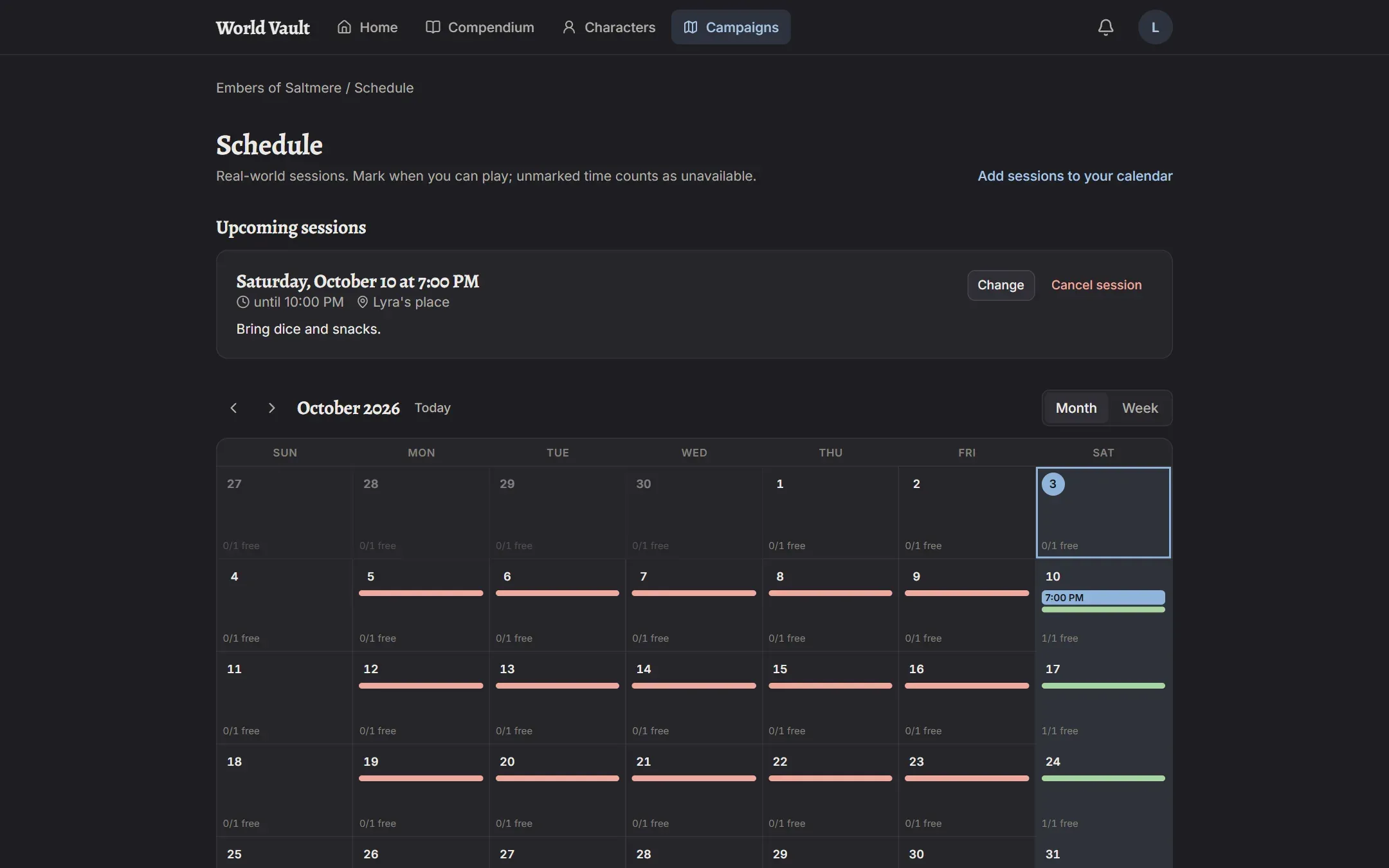
Marking your availability
Section titled “Marking your availability”The schedule shows a month or week calendar. For any day, mark yourself:
- Free all day, Busy all day, or
- Partial times in 30-minute steps, each Free, Tentative or Busy.
All day and partial times don’t mix on the same day: choosing one replaces the other. Time you haven’t marked counts as unavailable.
Repeating availability
Section titled “Repeating availability”Use Repeating for patterns: “busy Mondays and Tuesdays 1–2 PM until October 31” or “free every Saturday”. A one-off mark on a particular day takes over from a repeating one.
Play days
Section titled “Play days”The DM picks the campaign’s usual play days (weekdays, plus one-off dates); the schedule highlights them.
For the DM: finding a time and confirming
Section titled “For the DM: finding a time and confirming”The DM sees an overview shaded by how many people are free or tentative in each half hour; hover a slot to see who. Pick a slot to confirm a session (three hours by default), with a location and notes. Everyone is notified.
Rescheduling
Section titled “Rescheduling”Can’t make a confirmed session? Use Ask to reschedule with a short message; the DM sees open requests on the schedule. Marking yourself busy during a confirmed session also lets the DM know.
Sessions in your own calendar
Section titled “Sessions in your own calendar”Under Notification settings → Calendar (or Add sessions to your calendar on a schedule) you get a private calendar link:
- Google Calendar or Apple or Outlook adds it in one click; or Copy link to paste it elsewhere.
- Every confirmed session from every campaign you’re in appears, with its location and notes, and stays up to date. Calendar apps check every hour or so (Google can take longer).
Times are shown in your own time zone.