The Table Display (VTT)
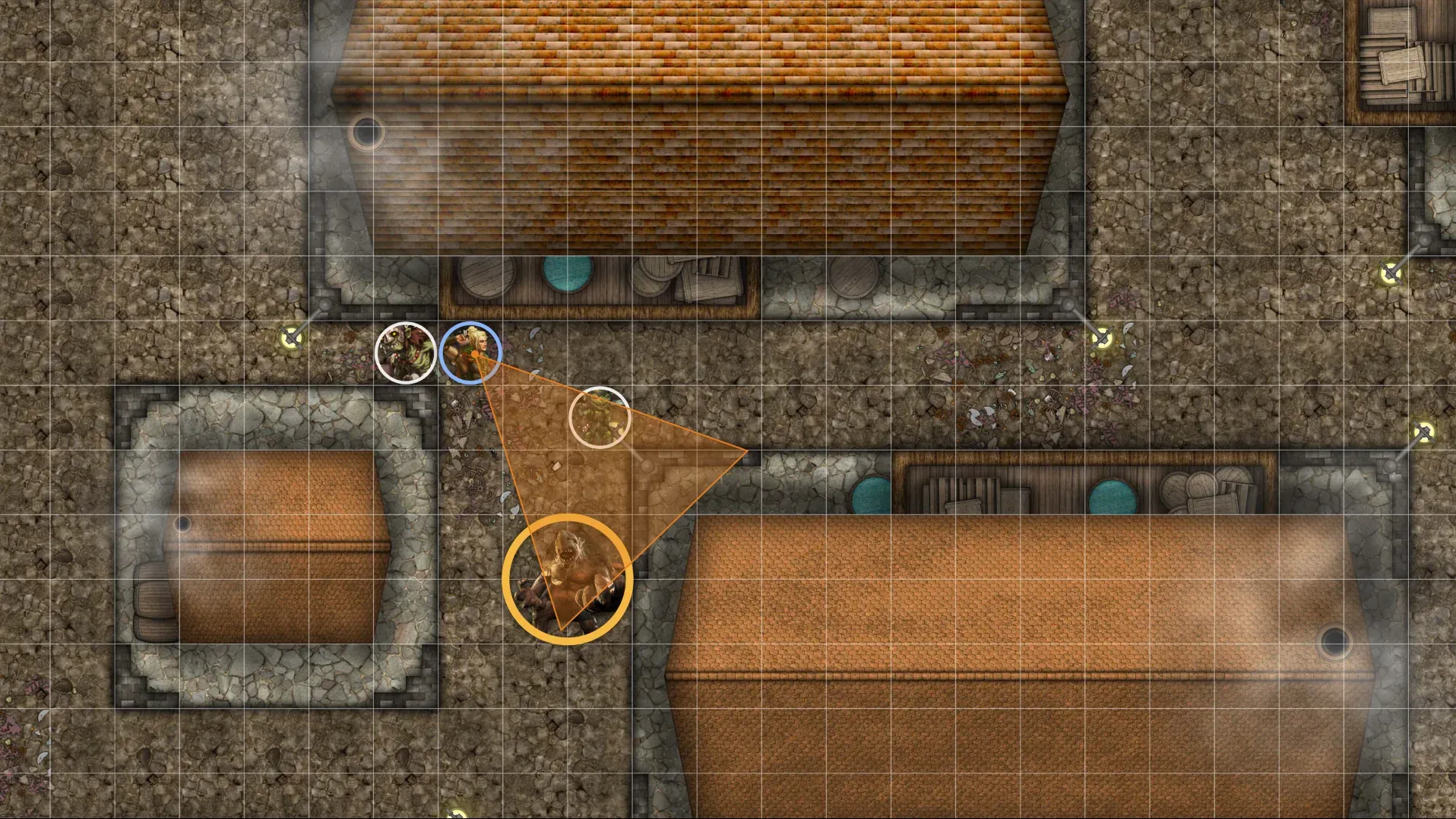
The Table Display is World Vault’s virtual tabletop, built for playing in person. It opens in a separate browser window that you can move to any external display, such as a TV, a computer monitor or a projector, and shows the map with portrait tokens on it. The DM runs it from their own screen; players don’t need a device for it.
The Table Display shows only the map: no text, no dice results, no turn order. Everything else stays on the DM’s screen.
What you need
Section titled “What you need”- An external display (a TV, a computer monitor or a projector) connected to your computer, or to a separate small computer.
- Your computer with a browser, signed in as the DM.
Open it
Section titled “Open it”On your campaign’s page, choose Table Display. This is your DM screen.
Choose Open Table Display to open a second window. Drag it onto your external display and press F11 to make it fullscreen. F11 keeps it fullscreen while you work in your other window (clicking the window’s own fullscreen button can leave fullscreen when you switch windows in some browsers).
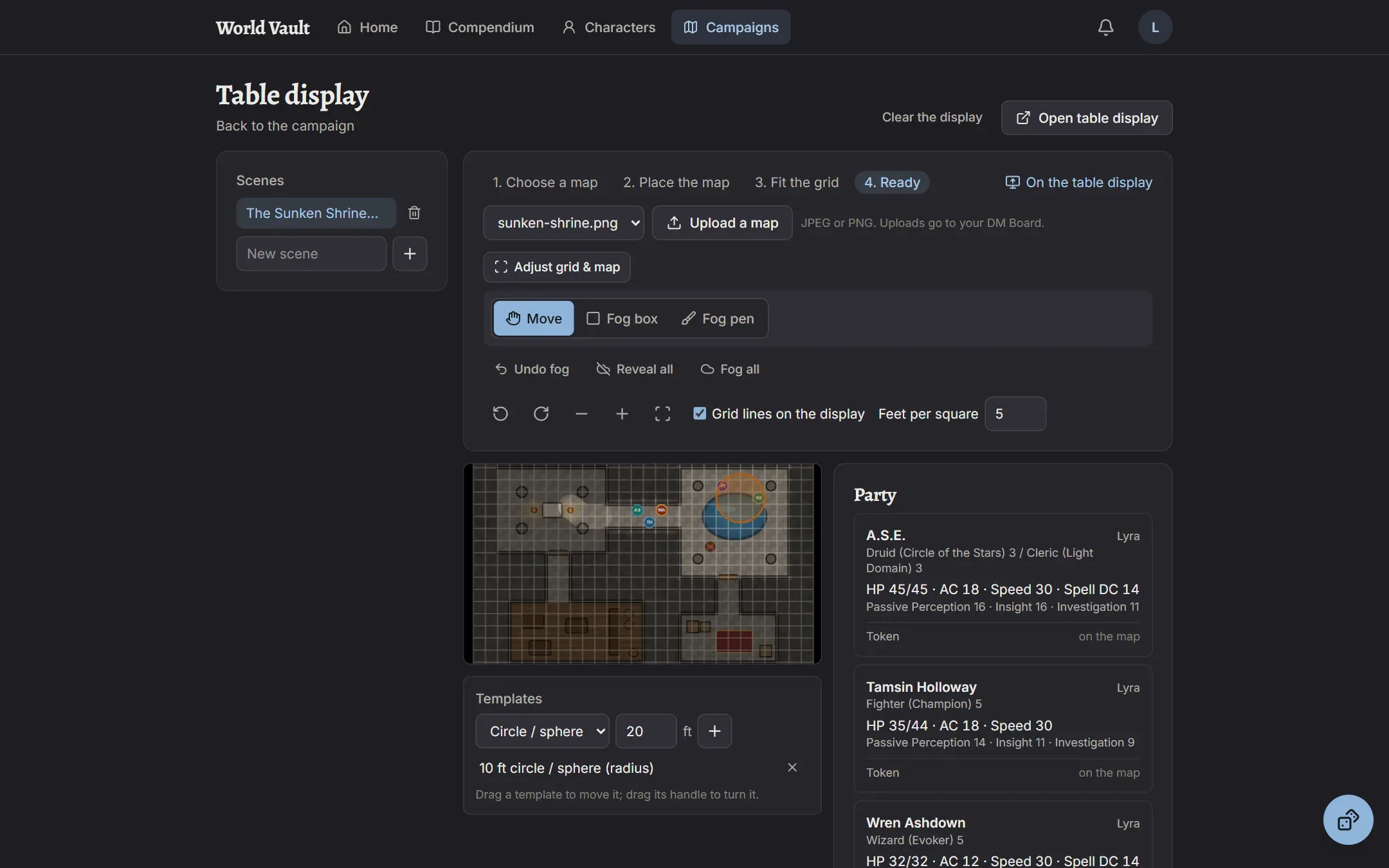
The DM screen always shows exactly what’s on the Table Display, in the same shape.
Scenes
Section titled “Scenes”A scene is a map with its placement, grid, tokens, fog and templates. Prepare as many as you like; only one is on the Table Display at a time.
- Under Scenes, type a name and add it.
- Choose a map: pick an image from your DM Board, or Upload a map (JPEG or PNG).
- Place the map: drag it and its corners until it sits right on the Table Display, then Save map position.
- Fit the grid: drag the grid and use the size buttons until its squares match the map’s, then Save grid. Set Feet per square (5 by default).
- Choose Show on Table Display when you want players to see it.
The map and grid are then locked. Adjust grid & map unlocks them if you need to fix something.
Moving the view
Section titled “Moving the view”- Drag to pan, scroll to zoom, and use the rotate buttons to turn the whole Table Display in 90° steps, so the map faces the right way for your setup.
- Fit brings the whole map back into view.
- Grid lines on the Table Display turns the grid on or off for players (useful if the map has its own grid).
Tokens
Section titled “Tokens”Everyone is a portrait token: the character’s portrait, the monster’s picture, or a colored circle with initials.
- The party: the Party panel shows each character with Add to map (and one for each companion).
- Creatures: search for a monster, choose how many, and add them. Each is its own creature with its own HP (“Goblin 1”, “Goblin 2”), kept between scenes and sessions. New creatures start hidden from the table.
- Drag tokens to move them; they snap to the grid.
- Select a token to see and change its details: Show on the table / Hide from the table, its size in squares, Remove from scene, and for creatures: HP (with Damage and Heal), AC, initiative, conditions and notes.
- At 0 HP a token is greyed out with a red X, the only state the Table Display shows.
Pictures: players add portraits on their sheets. For a creature, set a picture for just that one, or for every creature of that kind in your campaign.
Fog of war
Section titled “Fog of war”Maps start fully fogged; reveal areas as the party explores. On the Table Display the fog is solid; on your screen it’s see-through, so you always see what’s under it.
- Fog box: drag a rectangle. Fog pen: paint freehand, with a pen size.
- Each tool can Reveal or Hide.
- Undo fog, Reveal all and Fog all are one click.
Spell templates
Section titled “Spell templates”Under Templates, pick a shape (circle or sphere, cone, line, square or cube) and a size in feet, and place it. It’s drawn to the grid’s scale. Drag it to move it and drag its handle to turn it. Remove it when the spell is done.
Initiative
Section titled “Initiative”The Initiative panel is on your screen only.
- Add everyone on the map, or add creatures one by one.
- Roll for each creature, or Roll for creatures for all of them. Give creatures the same group number to have them act together on one roll.
- Players’ initiative rolls from their sheets fill in automatically.
- An initiative value locks once it’s set. To redo one, remove the row and add the creature again.
- Next turn moves down the order and counts rounds.
On the Table Display, the creature whose turn it is gets a gold ring, and the one up next a blue ring. No names or numbers are shown.
Asking for rolls
Section titled “Asking for rolls”Under Ask for a roll, tick the characters, choose what they may roll (several options hide what you’re really testing, like “Persuasion or Deception”), and tick Private for answers only you should see. Players get a prompt on their sheets; their results appear in the panel.
The party at a glance
Section titled “The party at a glance”The Party panel shows each character’s HP, AC, speed, passive scores, senses, conditions, concentration and death saves, updated live. Click a name to open the sheet in a new tab.
Your dice
Section titled “Your dice”Your own dice tray is on the DM screen too; your private rolls are seen only by you.